Viewing Command Logs
 Use the View button on the Commands menu to access and view historical logs of selected FMS commands, and of certain pertinent user input, within a specified time frame.
The user input actions, Approve Jobs, Edit Data, Process Raw Data, Purge Device Data, Thin Device Data, and Purge Record, are also made available for viewing in the command logs, to provide additional useful information regarding user submitted/deleted records.
Logging levels are as follows:
- Low - Errors only
- Medium - Errors and warnings
- High - Errors, warnings, and additional information* applicable to the command
* e.g. exceptions, data categories, unit set creation
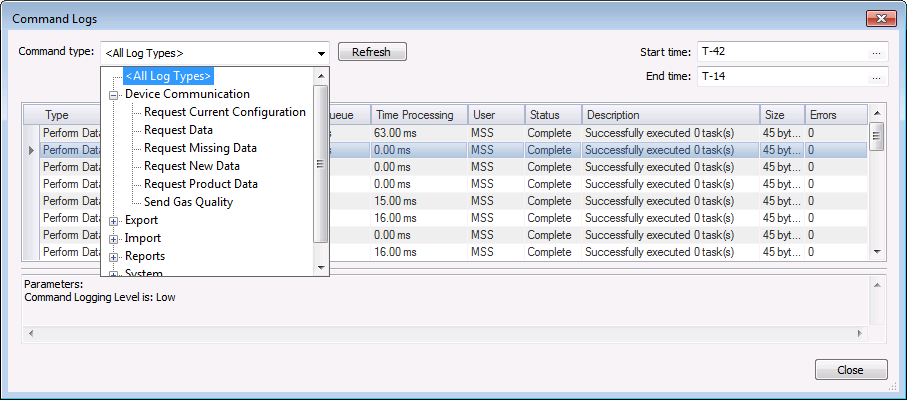
Click View on the Commands menu ribbon to access the Command Logs dialog box. The window can be resized to adjust your view size, and the slider between the panes allows you to adjust relative viewing areas for greater visibility into either the records list or details for the selected record.
|
Command Logs |
Command Log Parameters
Select a command type and time range for which to retrieve records, by defining the following parameters.
| Parameter | Description |
|---|---|
|
Command type |
Click to select the Command type for which you wish to view logs from the drop-down list box. The list is populated by the commands supported by the service. Options are as follows.
|
|
Refresh |
Click to Refresh the log display. |
|
Start time |
Select the starting date/time. Click ... to access the Select Date and Time dialog box. Note: For system efficiency, it is recommended that you enter a specific time range that meets your log viewing needs, and that will return a maximum of 20,000 entries. |
|
End time |
Select the ending date/time. Click ... to access the Select Date and Time dialog box. Note: For system efficiency, it is recommended that you enter a specific time range that meets your log viewing needs, and that will return a maximum of 20,000 entries. |
*Note: The User action options Edit Data, Process Raw Data, Purge Device Data or Thin Device Data, and Purge Records display useful log information regarding user submitted/deleted records, therefore they are made available for viewing in conjunction with other command log information.
**Note: Operates in conjunction with CygNet Dispatch. See CygNet Dispatch for more information.

Columns
Command log data is displayed in grid form with the following column headers.
| Property | Description |
|---|---|
|
Completed Date/Time |
Lists the date/time the command was completed. |
|
Description |
Lists the description of the command action and result. |
|
Errors |
Lists the number of errors generated during the command processing. |
|
Executed Date/Time |
Lists the date/time the command was executed. |
|
Size |
Lists the size (in bytes) of the text record for the resulting log details. |
|
Status |
Lists the status of the command. |
|
Submitted Date/Time |
Lists the date/time the command was submitted. |
|
Time in Queue |
Lists the time the command was in the queue prior to execution. |
|
Time Processing |
Lists the time taken to process the command. |
|
Type |
This column appears when the command type selected is <All Log Types>; it lists the command type for each log record. |
|
User |
Lists the user who executed the command. |
Columns can be reorganized for the most efficient viewing of data in the following ways.
- Hover over a column edge to display an icon to reset column width. Drag the column to the desired width.
- Drag a column header left or right to the desired location.
- Drag a column header off the grid entirely to remove that data field from the view. The removed column header will appear on the field chooser.
- Drag a column header from the field chooser to the column header row to add that data field to the view.
- Click on a column header to sort the displayed data based on that item, in either ascending or descending order.
Viewing Command and Associated Logs
To View Command and Associated Logs
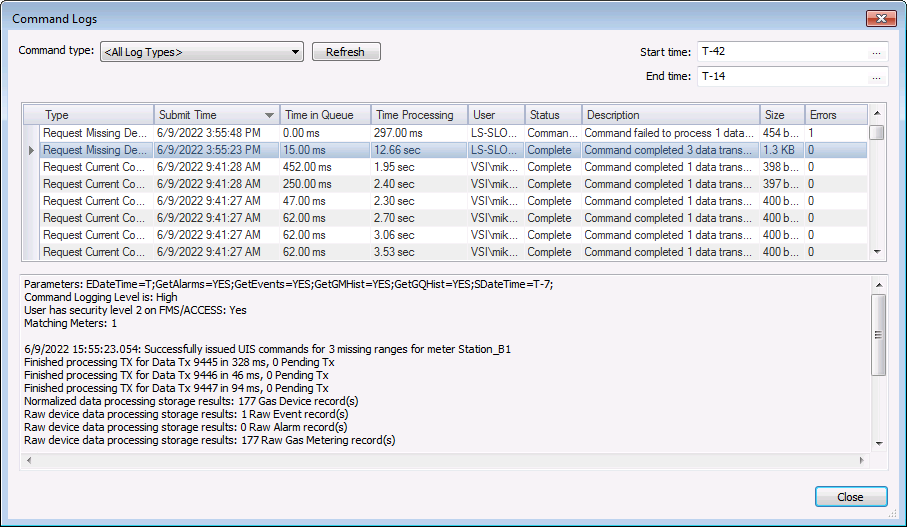
- In FMS Explorer, open the Commands menu, and then click View to access the Command Logs dialog box.
- Click to access the Command type drop-down list box, and then select the log type you would like to view.
- Select a Start time and End time to define the date/time range for which to display logs. Click ... to access the Select Date and Time dialog boxes.
Note: For system efficiency, it is recommended that you enter a specific time range that meets your log viewing needs, and that will return a maximum of 20,000 entries.
- Results will be displayed in table form in the top pane. Click on any data row to display detailed results of the selected command log record in the bottom pane.
|
Command and Associated Logs |
- Click Close when you are done.

